
Connect a sandbox
Two sides to connect: the Hub has to know the sandbox, and the sandbox has to be able to call the Hub. Veles does most of it; your part is one modal on the Hub and, on an existing sandbox, Step 1 of its own Setup tab.
On the Hub
Open Environment Management and click New Environment.
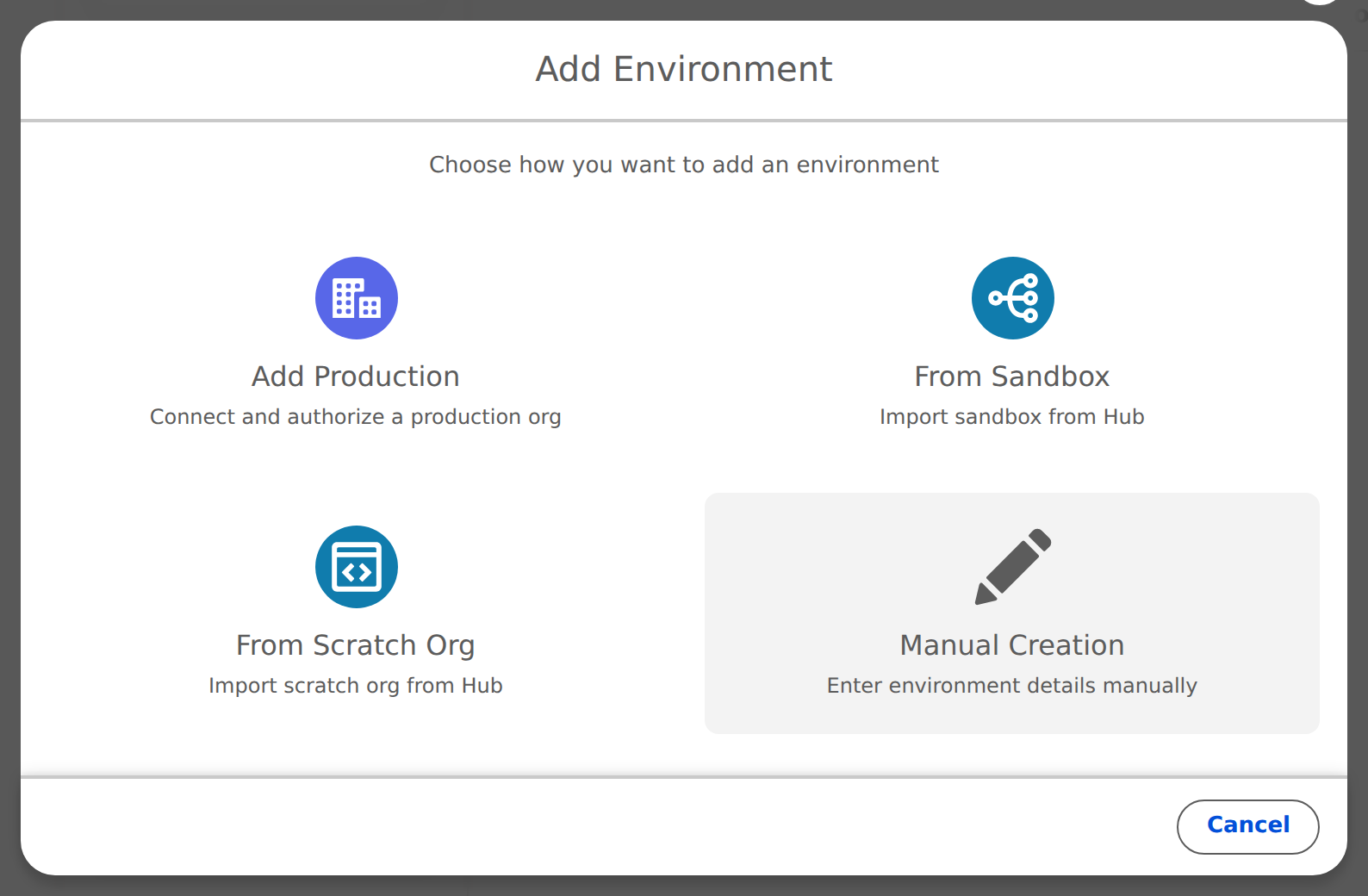
Choose From Sandbox. Pick the production org under Import sandboxes from (your Hub, or another production you connected).
Tick the sandboxes you want and click Add Sandbox. Veles reads the list from the production org, so the Sandbox Name and org id are filled in correctly.
The Setting Up Environment window runs three steps: the Hub's Remote Site Setting for the sandbox, the sandbox's Remote Site Setting for the Hub, and Organization Info. Wait for Setup Complete.
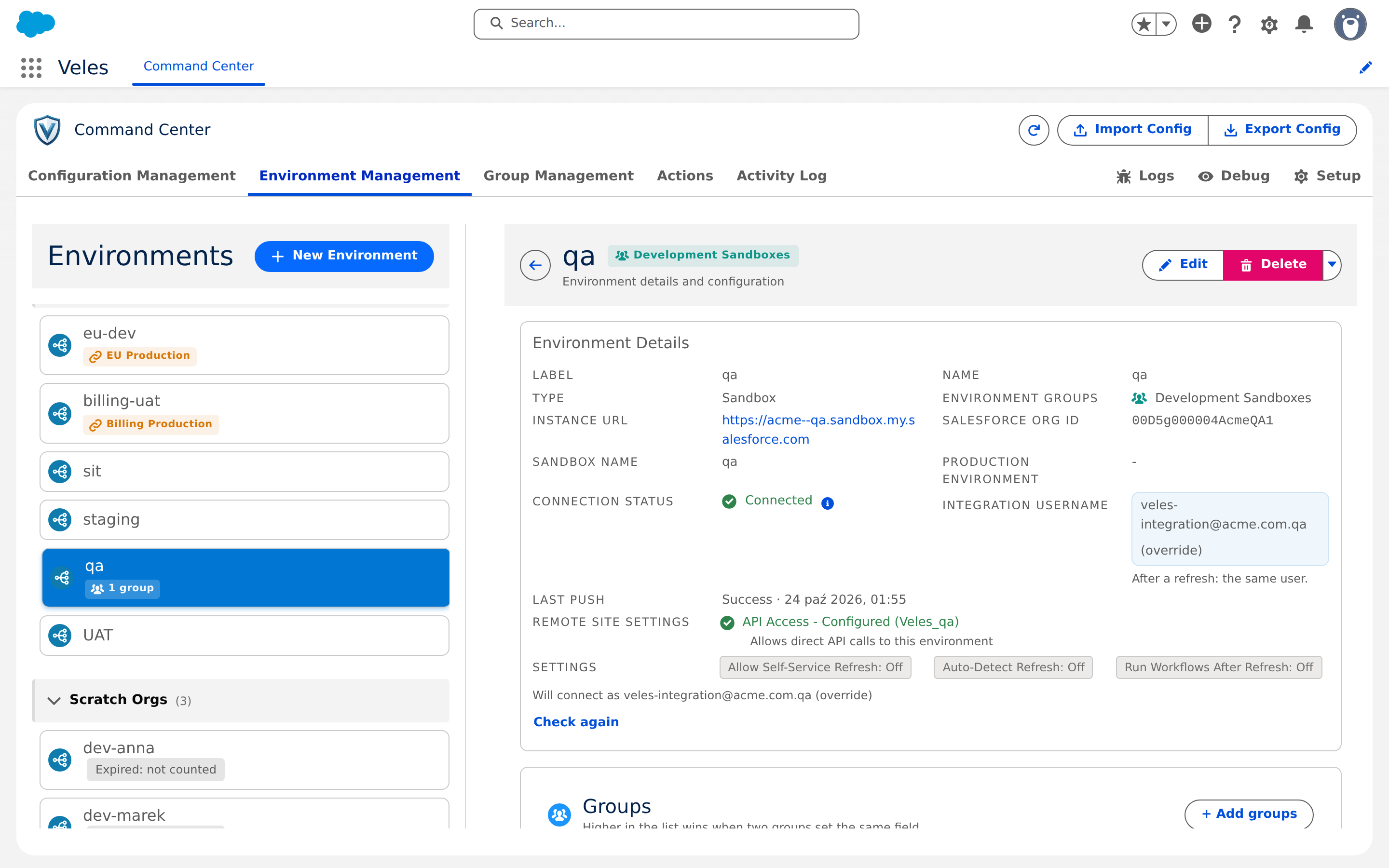
Open the new row. Under Connection Status you see Ready to authorize or Connected, not yet reached from this Hub. The first push connects it.
On the sandbox
A sandbox copied from a production that already runs Veles has the package. What it still needs is its integration user ready:
- Open the Veles app in the sandbox. The Setup tab opens.
- In Step 1, confirm the Integration Username. It is the production integration user with the sandbox suffix, for example
veles-integration@yourcompany.com.uat. Veles pre-fills it. - The Veles Integration permission set and the ECA pre-authorisation are copied from production during a sandbox copy. Click Verify Configuration to confirm. If anything is red, fix it the same way as on the Hub (Integration user and ECA).
- In Step 2 choose This org reports to a Master Hub, enter the Hub's My Domain URL and the Hub's integration username, and click Save Hub Configuration.
Shortcut: sf veles setup --target-org <sandbox-alias> does steps 2 to 4 from the command line once the environment row exists on the Hub. See sf veles CLI plugin.
First push
Back on the Hub, open the sandbox row and click Push Config to Environment. The preview lists what will be sent; click Push. The status pill turns Connected. From now on the Hub and the sandbox trust each other through a connection token of their own.
Settings worth turning on now
Click Edit on the sandbox row:
- Auto-Detect Refresh: on. Without it, this sandbox is not watched for refreshes.
- Run Workflows After Refresh: on (the default). Runs the assigned workflows once a refresh is detected.
- Allow Self-Service Refresh: on if the sandbox's own admins or developers should be able to request a refresh from inside the sandbox.
- Veles Sandbox Access group: Automatic keeps users' access through a refresh for Developer and Developer Pro sandboxes; On does it for every sandbox type. See Sandbox refresh.
Then add the sandbox to an environment group and assign a workflow.
If it does not connect
- Deploy RSS on the row re-creates a missing Remote Site Setting.
- Check again re-runs the sign-in and shows the exact reason next to the pill. A
401never disconnects a sandbox; fix what the message names, then check again. - Setup Environment re-runs the setup steps and skips the ones already done.
- More in Troubleshooting.