
Install and set up the Hub
The Hub is the production org you manage everything from. Set it up once; sandboxes and scratch orgs connect to it afterwards.
Before you start
You need, in the production org:
- A System Administrator login.
- A dedicated integration user for Veles, for example
veles-integration@yourcompany.com. Any active user works for a first try, but a dedicated one is what you want in production: it is the user Veles signs in as. Its profile needs API Enabled, Modify Metadata Through Metadata API Functions, Manage Sandboxes and Manage Users. - Enterprise, Unlimited, Performance or Developer edition. Veles needs API access and sandboxes.
1. Install the package
Install Veles from the AppExchange listing into the production org, for Admins only. The installer gets the Veles Admin permission set automatically. Anyone else who should use Veles needs Veles Admin assigned under Setup > Permission Sets (assign the packaged set, not a clone: clones do not upgrade with the package). After an assignment, reload the page.
Open the Veles app from the App Launcher. Until setup is finished the Command Center shows only the Setup tab.
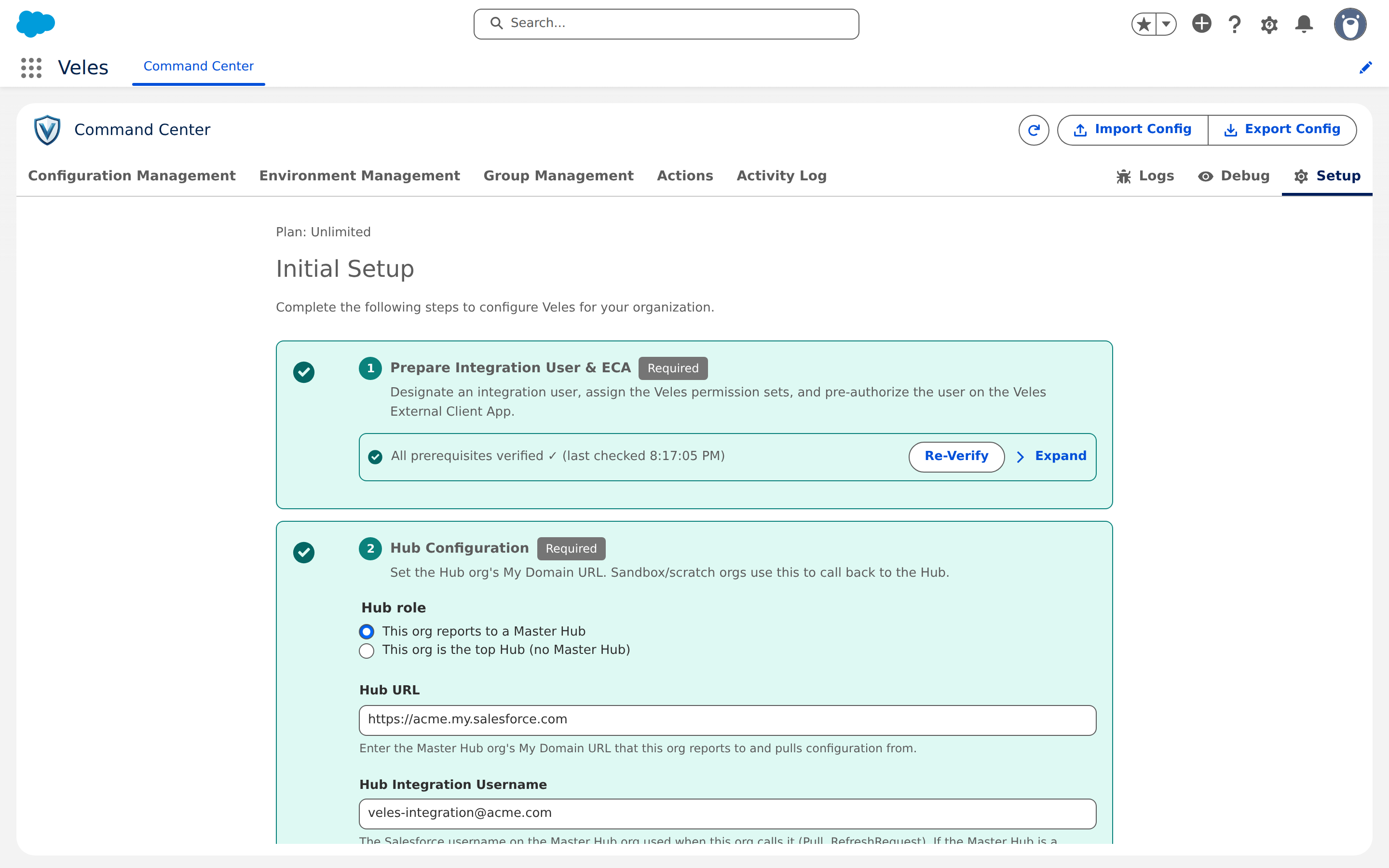
2. Step 1: Prepare Integration User & ECA
Four sub-steps. Veles checks each one and shows Done or Pending.
- 1.1 Integration Username: type the username of your integration user. It must exist and be active in this org.
- 1.2 Clone the permission set: click Open in Setup, clone the packaged Veles Hub Integration permission set and name the copy exactly Veles Integration (API name
VelesIntegration). Veles needs an unmanaged copy because the External Client App can only pre-authorise unmanaged permission sets. - 1.3 Assign it: assign Veles Integration to the integration user.
- 1.4 Pre-authorise the External Client App: click Open in Setup, open the Veles app, and on the Policies tab click Edit, expand OAuth Policies, set Permitted Users to Admin approved users are pre-authorized, save, then under Permission Sets click Manage Permission Sets, add Veles Integration and save.
Click Verify Configuration. Veles saves the username and signs in as that user the same way it will for every later call. Green means done. Red lists the blocker and which sub-step fixes it. The full detail, with the exact error texts, is on Integration user and ECA.
3. Step 2: Hub Configuration
Choose This org is the top Hub (no Master Hub) and click Save Hub Configuration. The other option, This org reports to a Master Hub, is what every connected org picks on its own Setup tab: a sandbox, a scratch org (sf veles setup sets it for you) or another production. It points that org at this Hub.
4. Step 3: Scheduled Background Jobs
Click Schedule all. Two of these jobs matter from day one and are off until you schedule them:
- Sandbox Refresh Detection: without it, Veles never notices a refresh and nothing runs after one.
- Execution Record Cleanup: without it, logs are kept forever.
The cadence of each job and what the others do is on Background jobs.
5. Complete Setup
Click Complete Setup. The remaining tabs appear and Setup moves to the right of the tab bar. You can come back to it any time.
What to do next
- Connect a sandbox or a scratch org.
- Create your first configuration and workflow.
- Read Sandbox refresh so the first refresh does what you expect.